Get a routing API key for “Time to leave”
“Time to leave” tells you when to set off, based on the current traffic. To calculate the travel time, CER asks a routing service. For that you need your own, personal API key from Google or TomTom. The key stays on your phone: CER doesn’t send it anywhere except to the provider, and it isn’t included in exported settings.
Which one should I take? Both give you a free key without a credit card. For everyday use, take Google: its free usage is meant for real use and is plenty for personal use. TomTom is quicker to set up (about five minutes), but its terms describe the free key as being for evaluation and testing.
→ Google key → TomTom key → Enter the key in CER → Problems?
Google Routes (free, recommended)
You don’t need a credit card or a billing account: without one, Google
gives you its free usage with lower limits, which is plenty for CER. Google only charges you if
you add a billing account and upgrade to a paid account yourself.
- Sign in. Open
console.cloud.google.com,
sign in with your Google account and accept the terms of service.
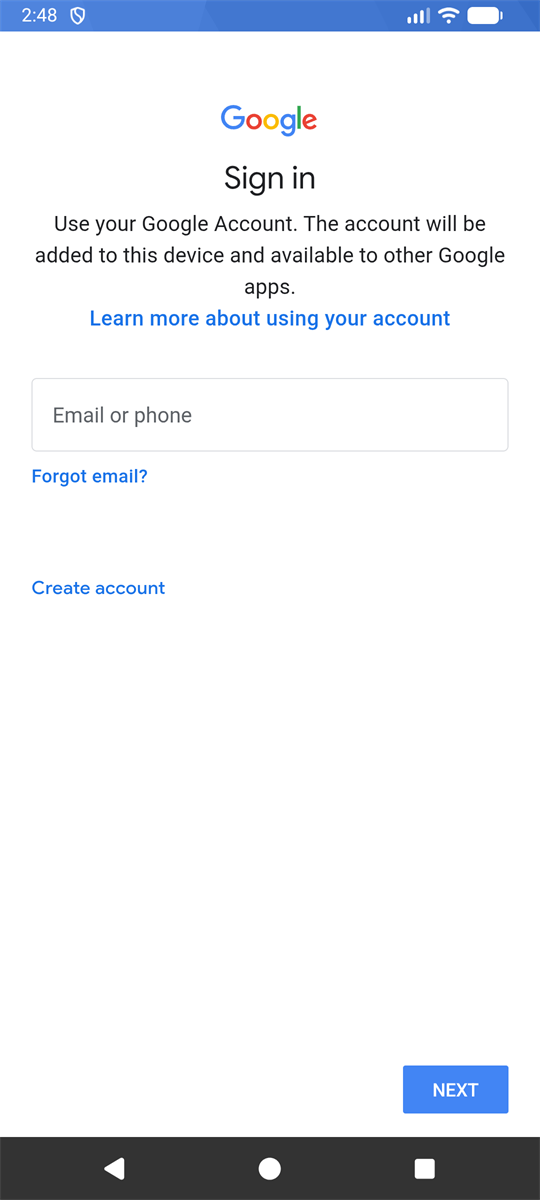
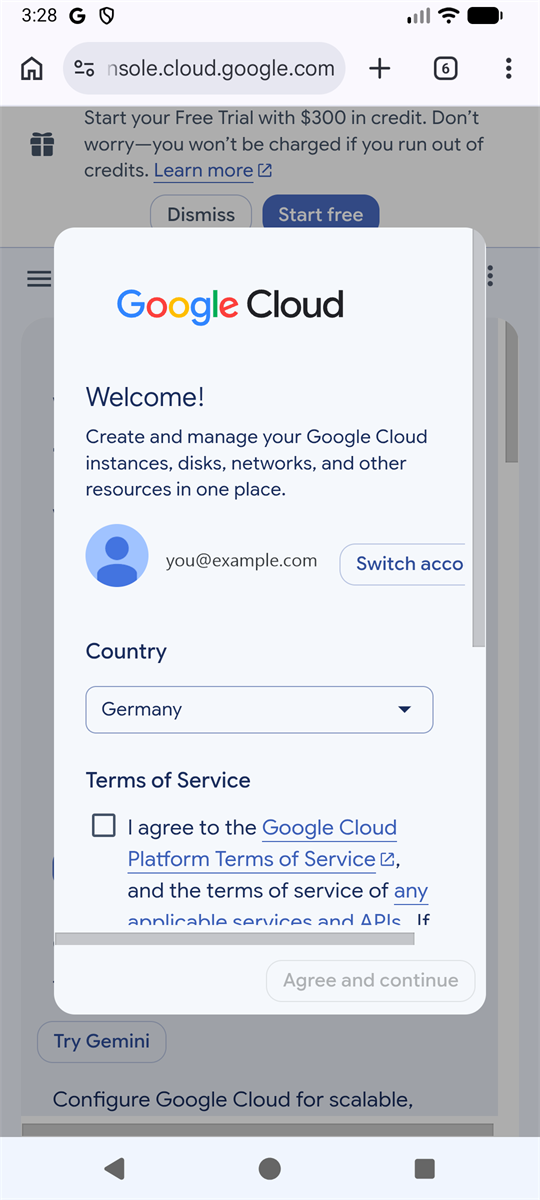
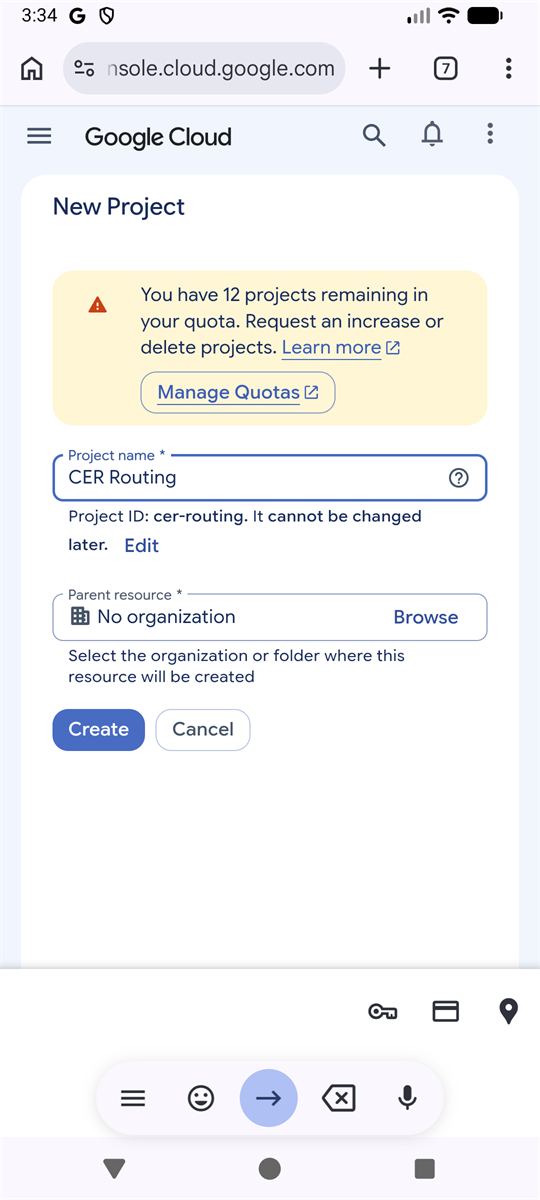
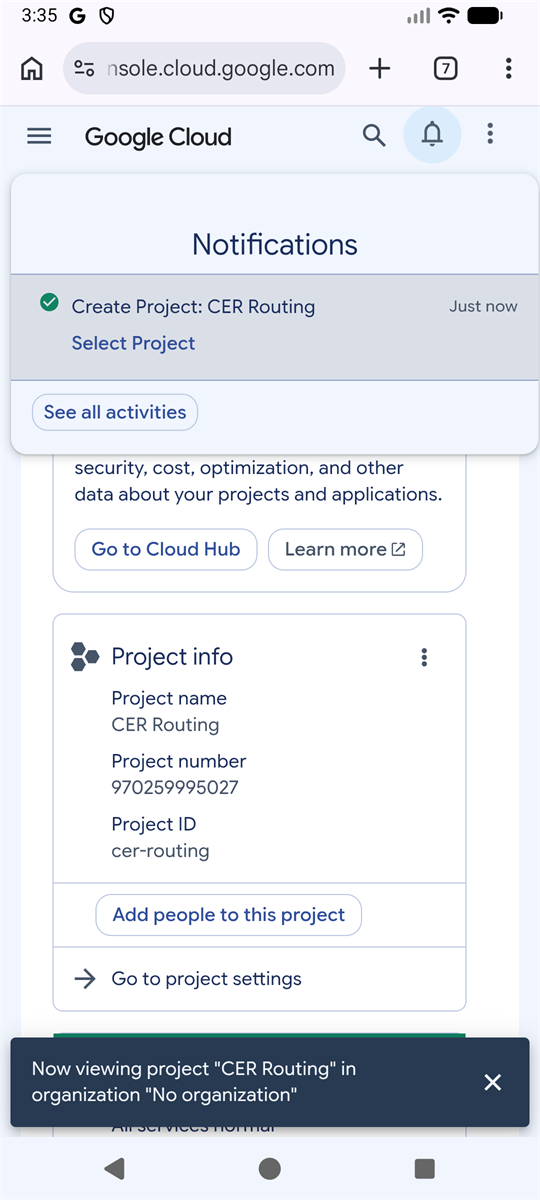
- Create a project. Tap the project picker at the top, then
New project. Give it a name with 4 to 30 characters, for example “CER Routing”, and
tap Create.
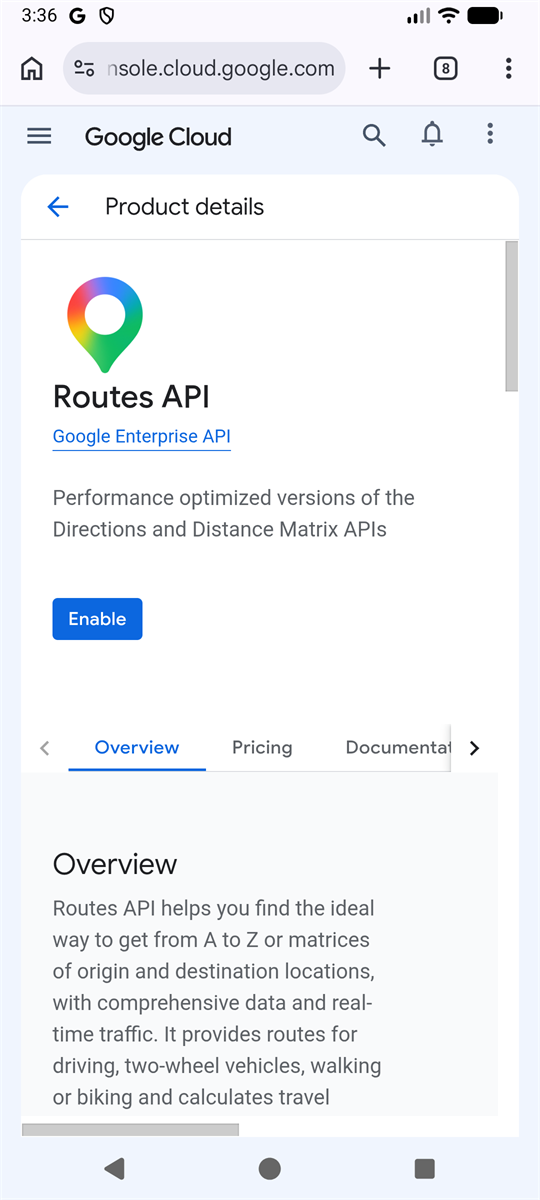
- Enable the Routes API. Open APIs & Services → Library, search
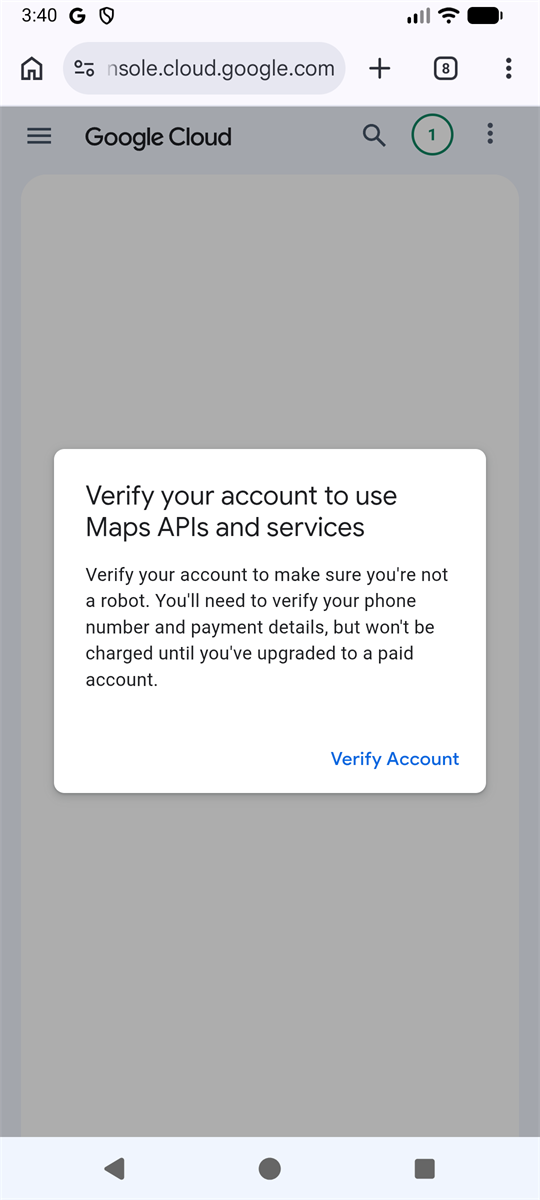
for Routes API and tap Enable. The first time, Google asks you to
verify your account: just tap Verify Account. Even though the dialog mentions a phone
number and payment details, when we tried it Google didn’t ask for anything. If Google then offers to create or protect an API key for you, tap
Maybe later: you’ll create the key yourself in step 5.
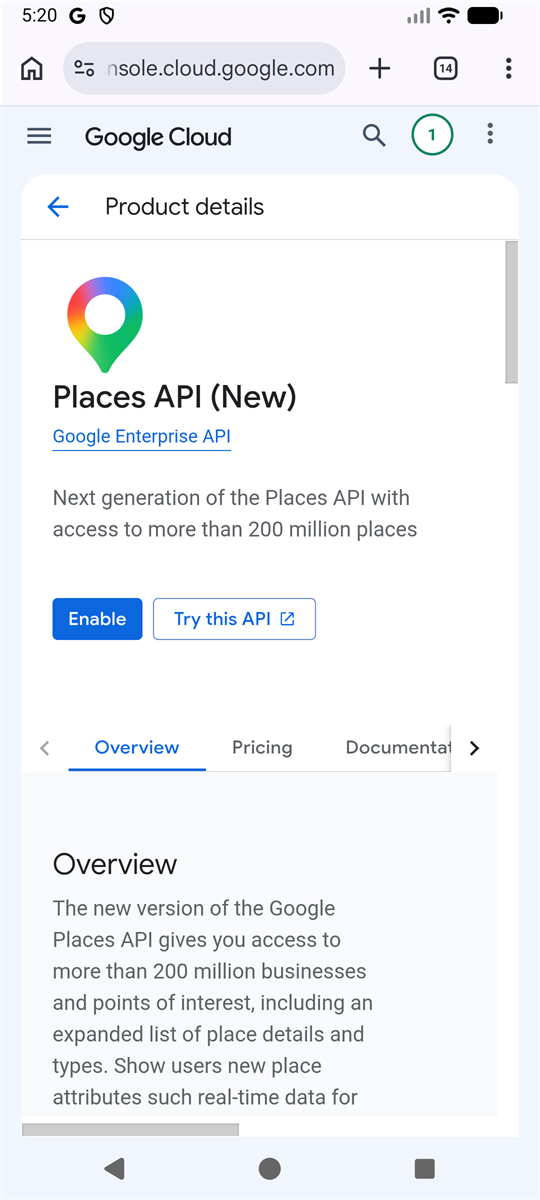
- Enable the Places API (New). Do the same for Places API
(New). CER uses it to find places such as “Airport” or a shop name.
 After verifying, Google sometimes switches to a different project or language. Check that your project (“CER Routing”) is shown at the top before you go on.
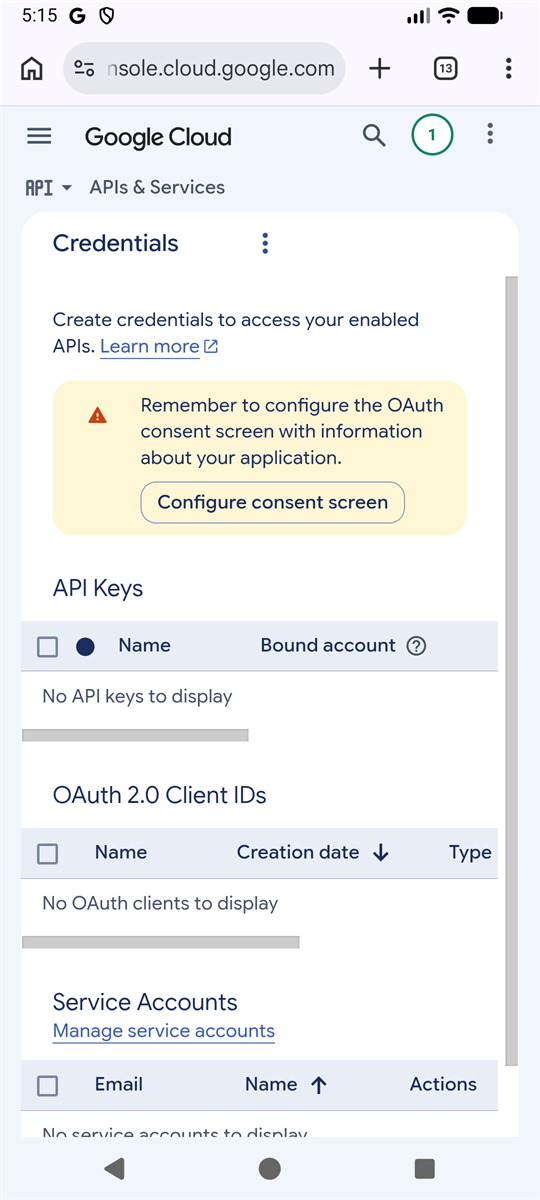
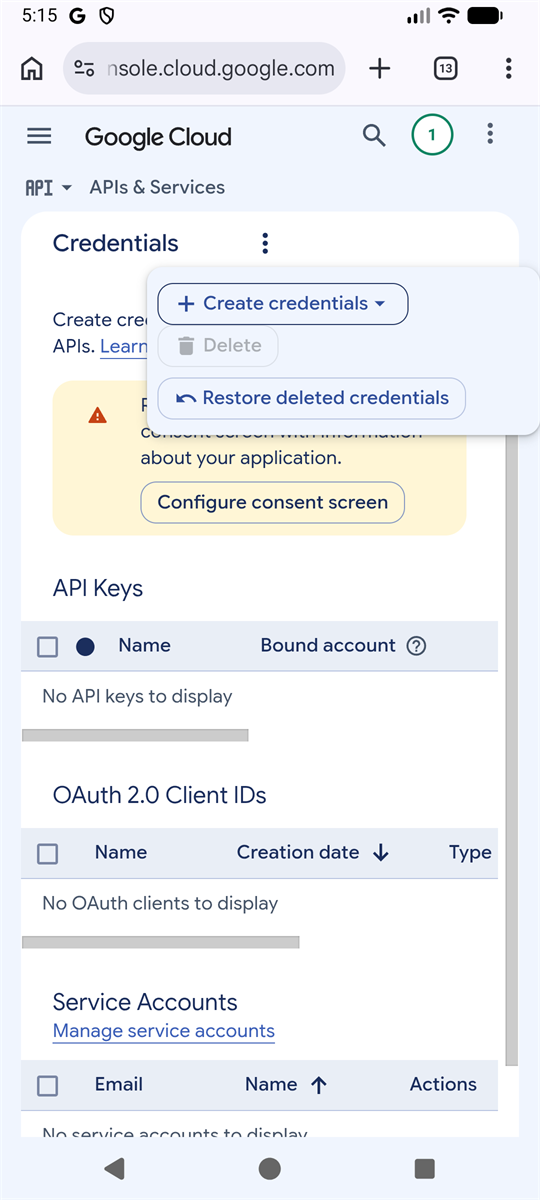
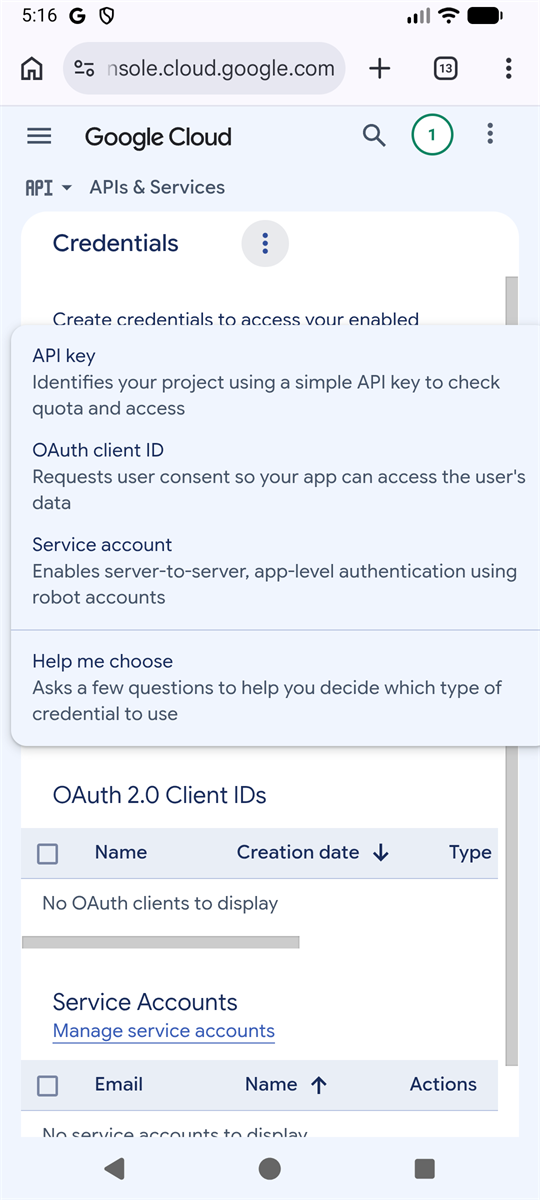
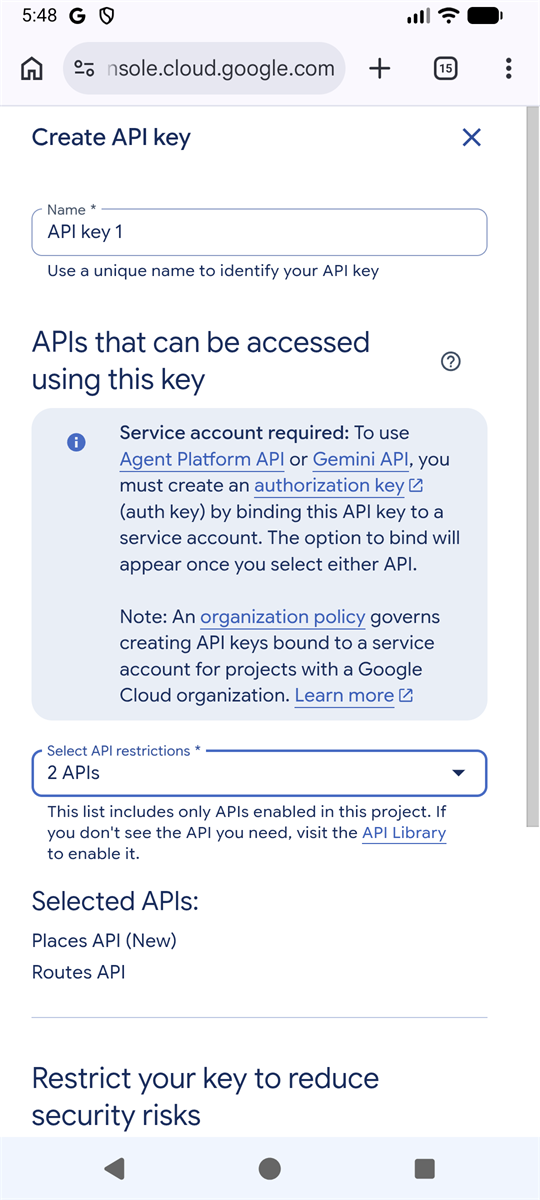
- Create the key. Open APIs & Services → Credentials. Tap the
menu (⋮) next to Credentials, then Create credentials → API key.
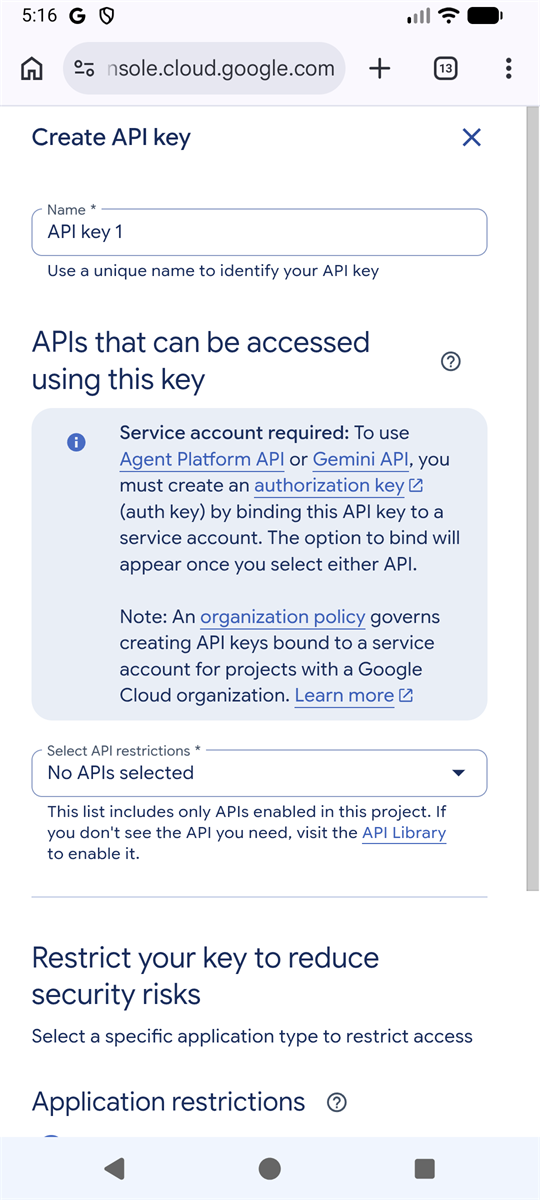
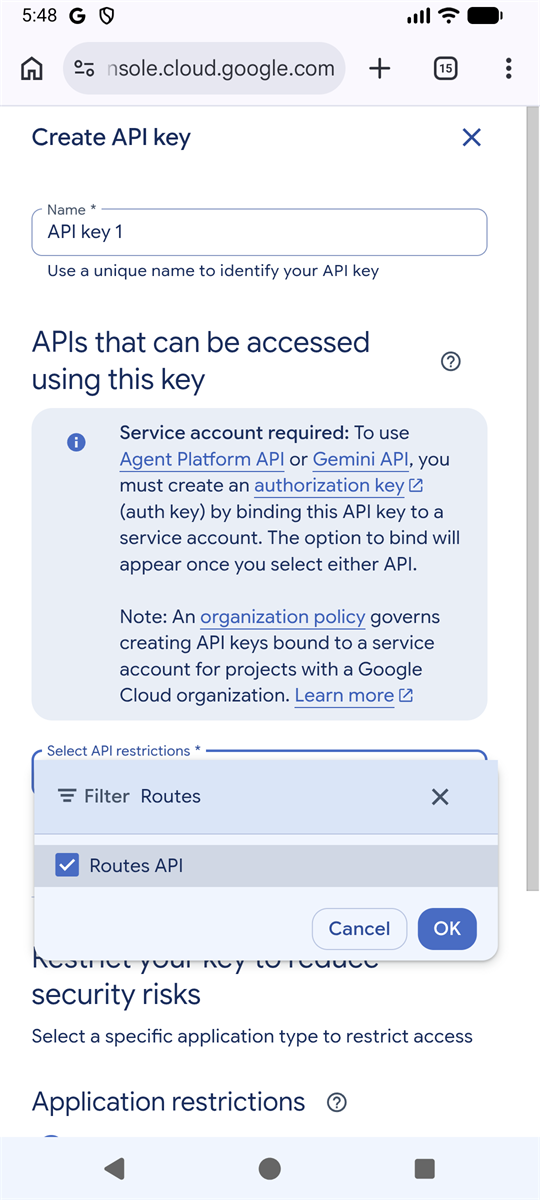
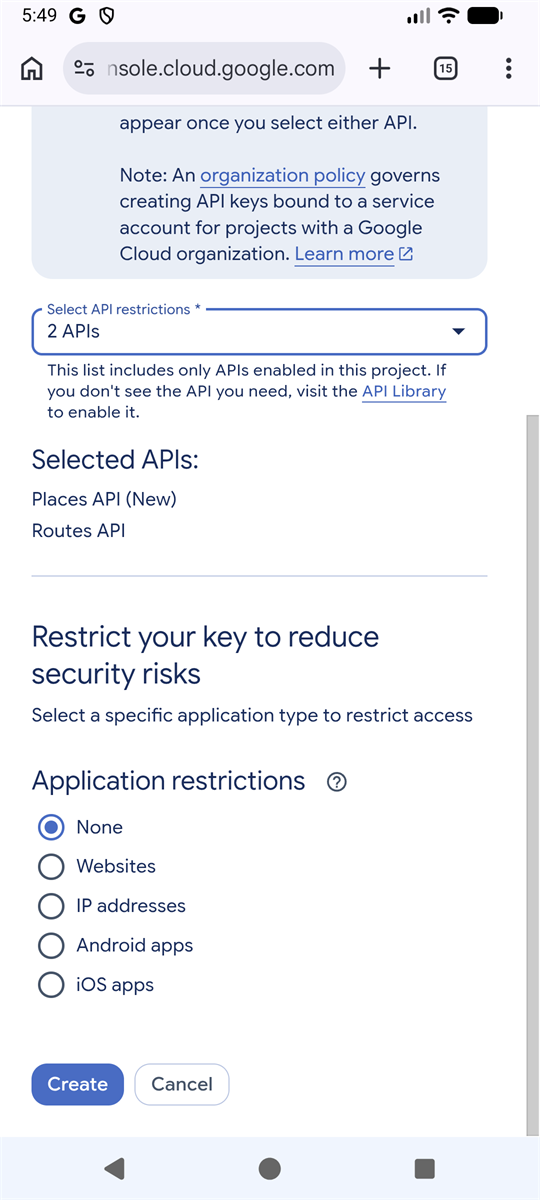
- Choose the APIs and create the key. Under Select API restrictions,
tick Routes API and Places API (New) (type in the filter
field to find them) and tap OK. Leave Application restrictions on
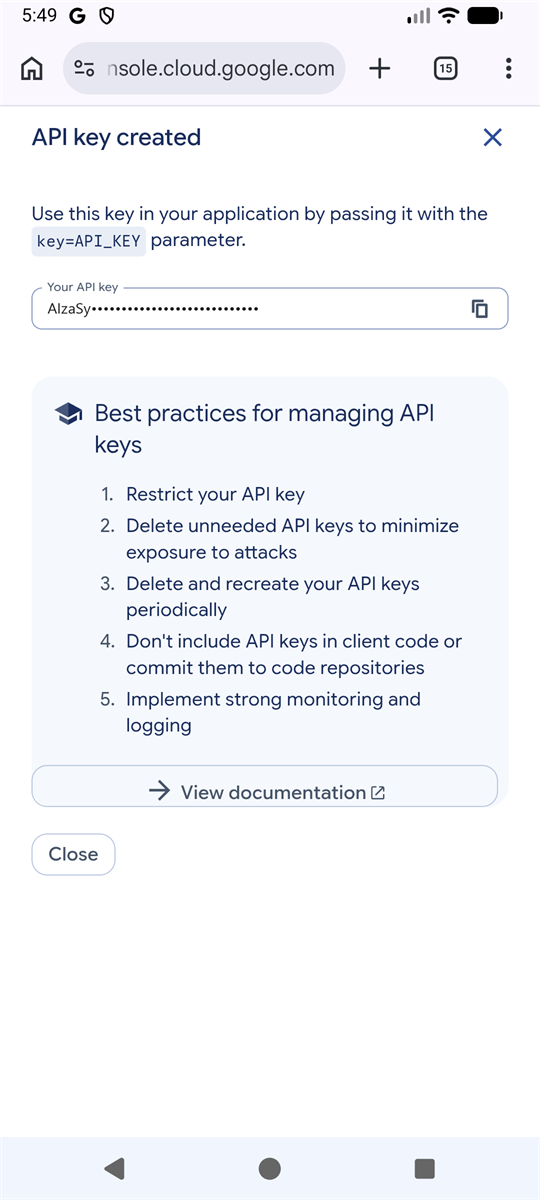
None and tap Create. Then tap the copy icon next to the key.
- Only if you add a billing account later: under APIs & Services → Routes API → Quotas you can lower the daily request limit, and under Billing → Budgets & alerts you get an e-mail before costs come up.
Now continue with entering the key in CER.
TomTom (free to try)
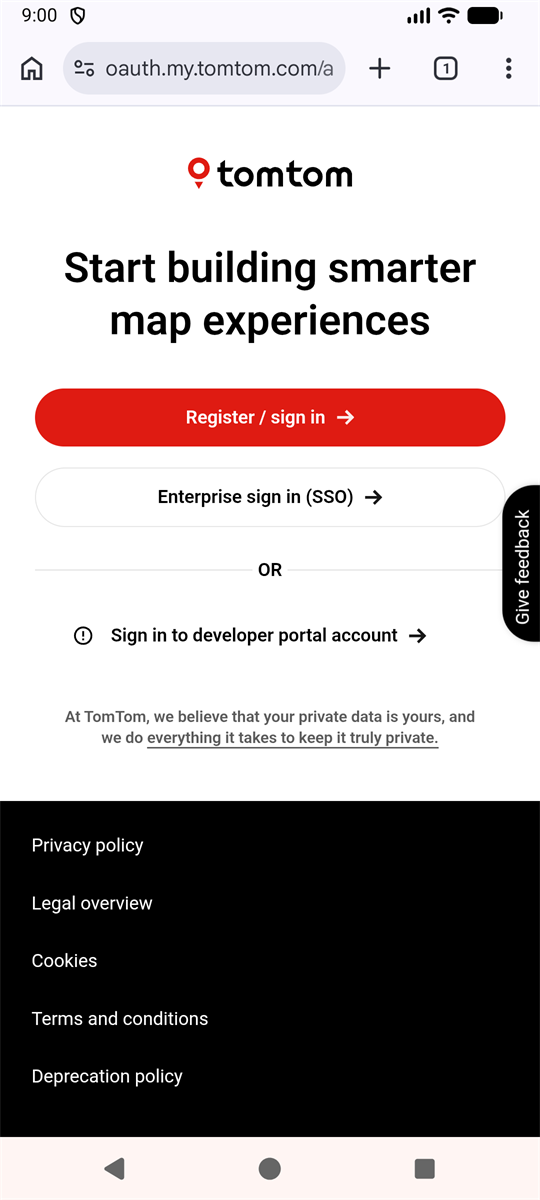
- Create a free account. Open
my.tomtom.com
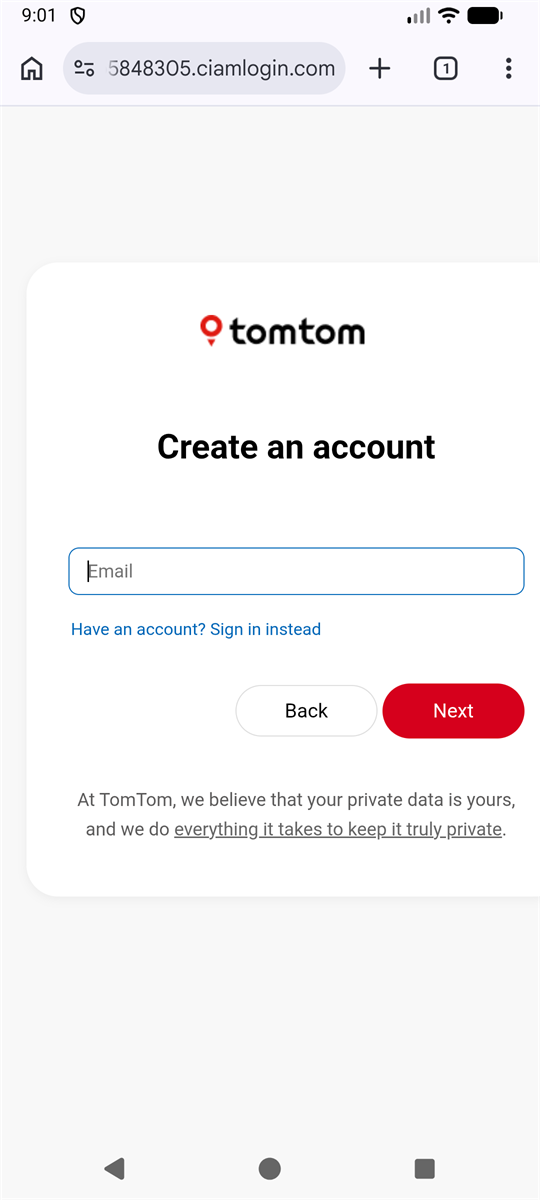
and tap Register / sign in, then No account? Create one.
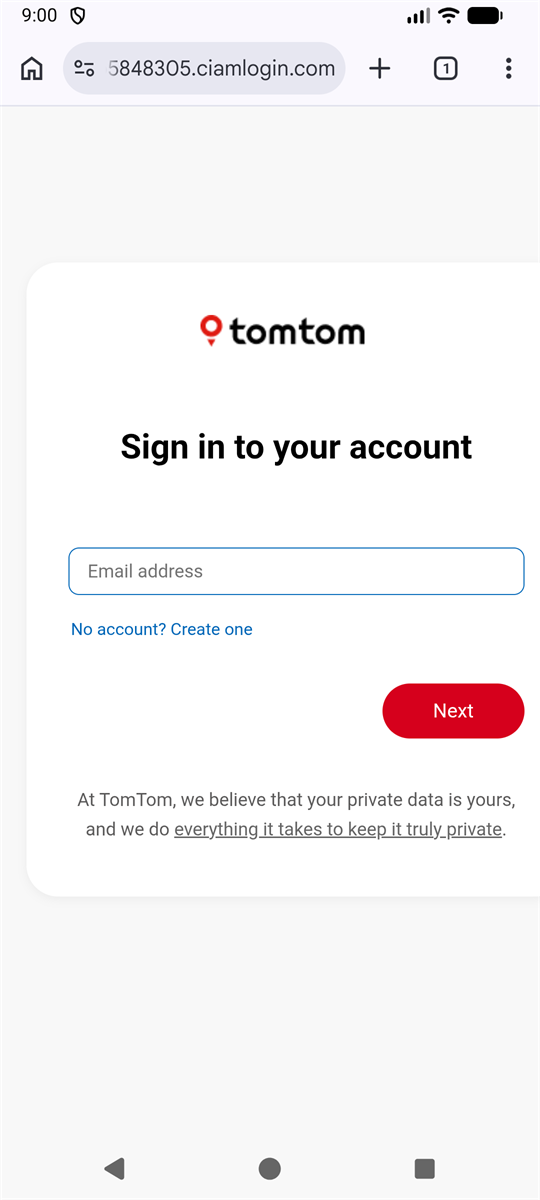
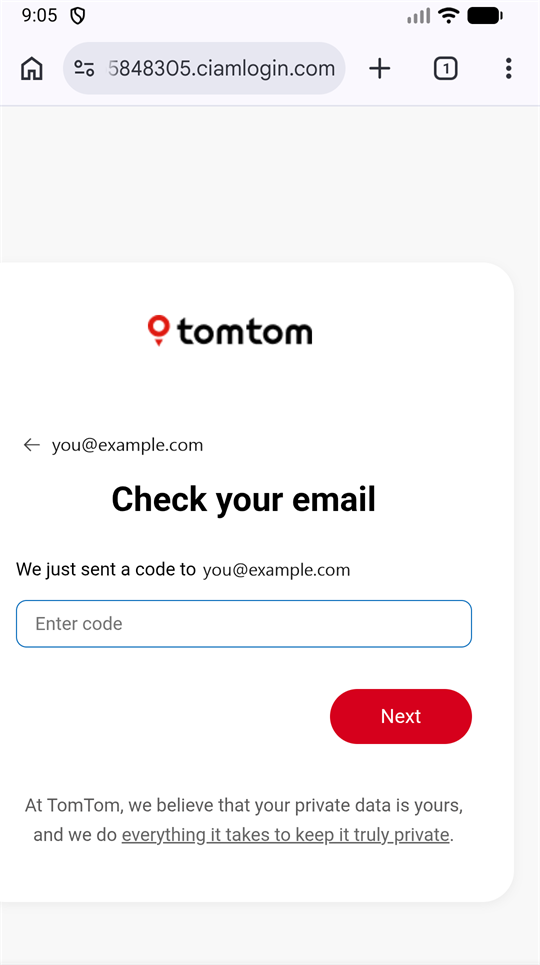
- Confirm your e-mail address. Enter your e-mail address, check your mail and
enter the code TomTom sends you.
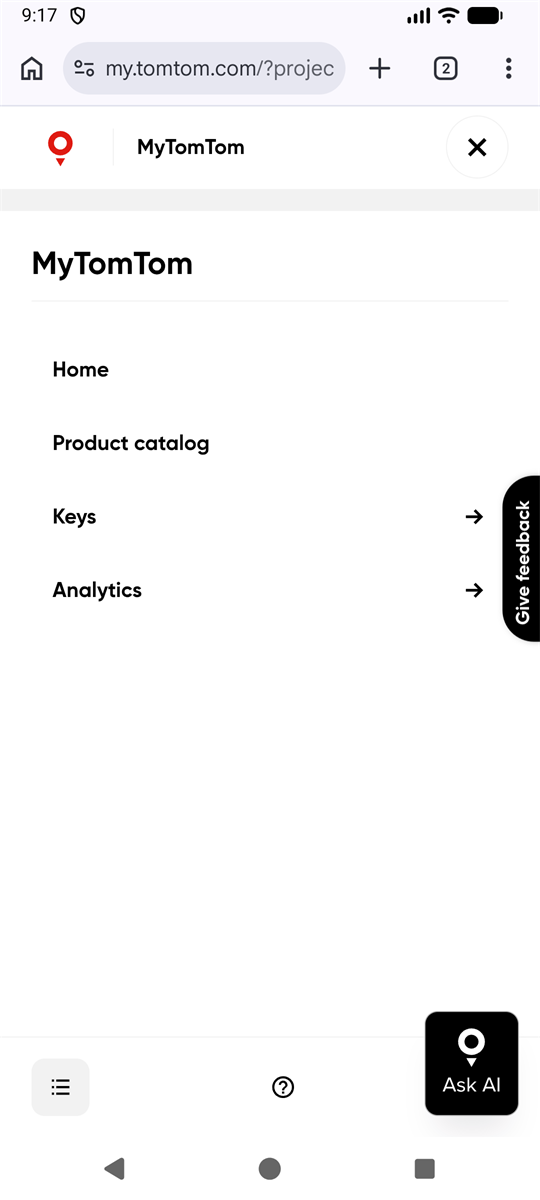
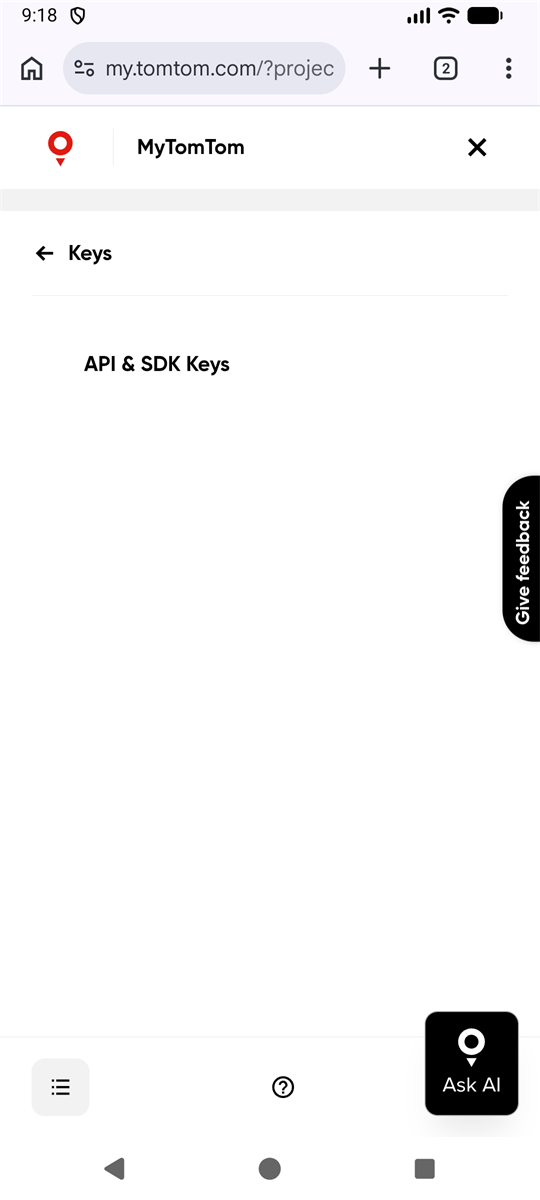
- Open your keys. Open the menu (☰) and tap Keys, then
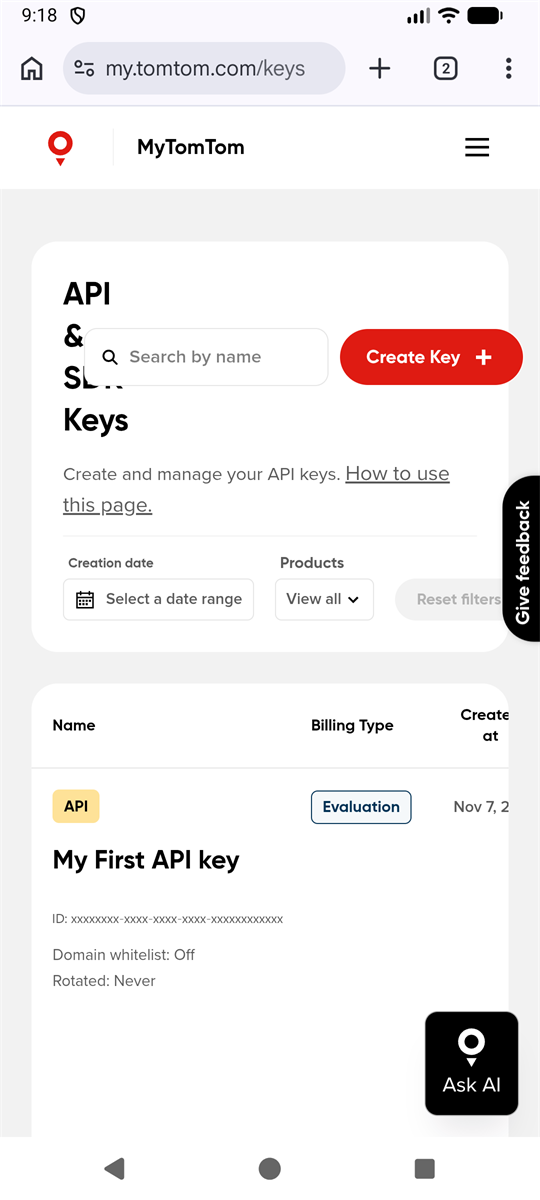
API & SDK Keys. TomTom has already created a key for you, called
My First API key. It includes everything CER needs, so you don’t have to create one.
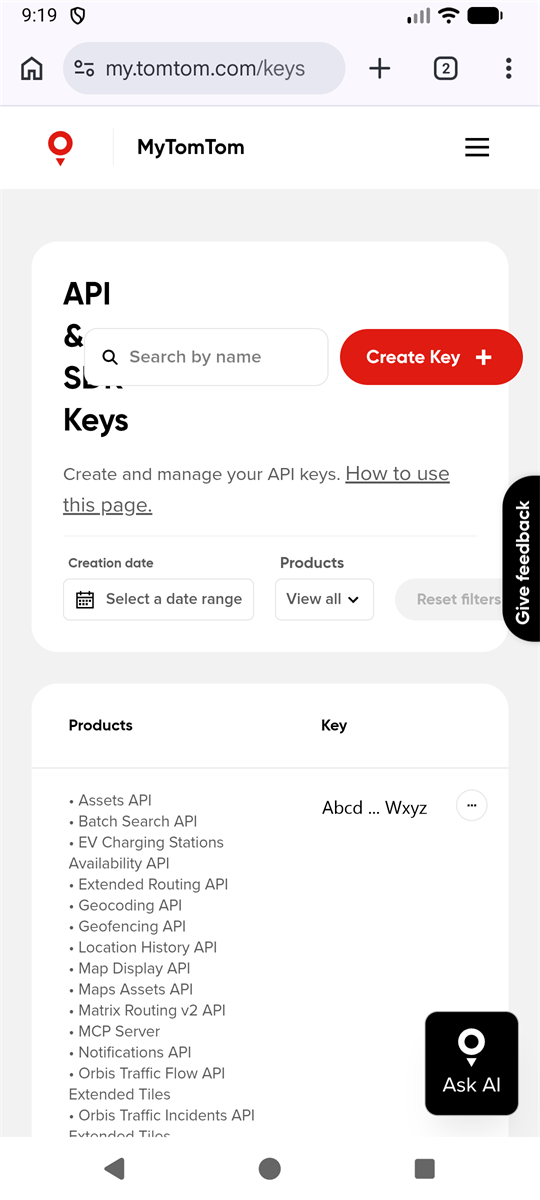
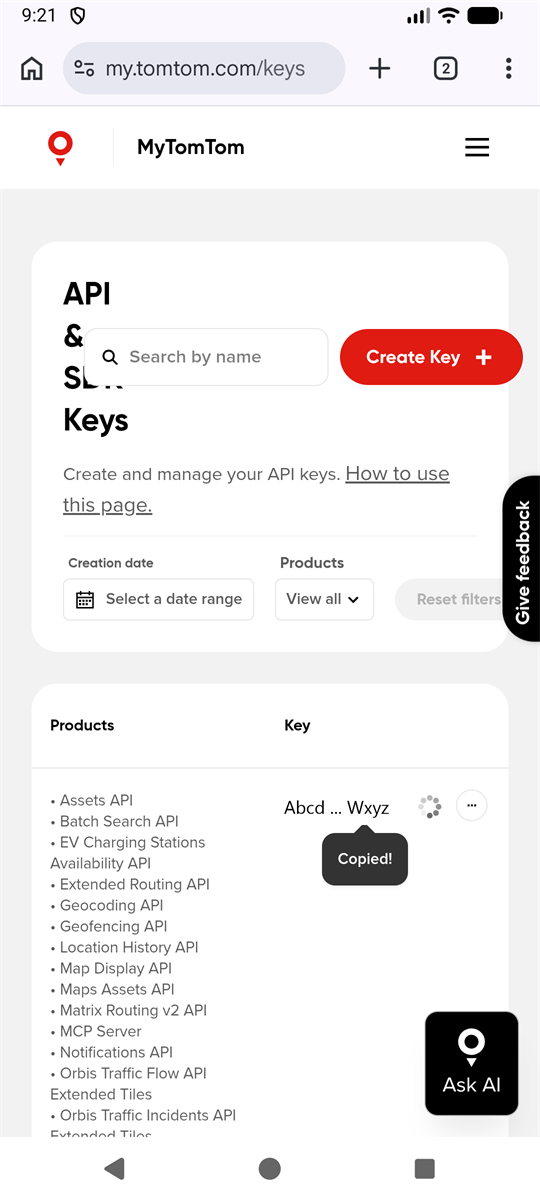
- Copy the key. Swipe the table to the left until you see the
Key column, then tap the key. TomTom shows Copied!.
TomTom’s free plan currently includes several thousand requests per day.
CER only asks when an appointment with an address is coming up, and less often while you still
have plenty of time, so you normally stay far below that. You can also set a daily limit in CER.
Enter the key in CER
- In CER, open Settings → Compatibility settings → Routing API keys.
You’re probably here already if you came from the app.
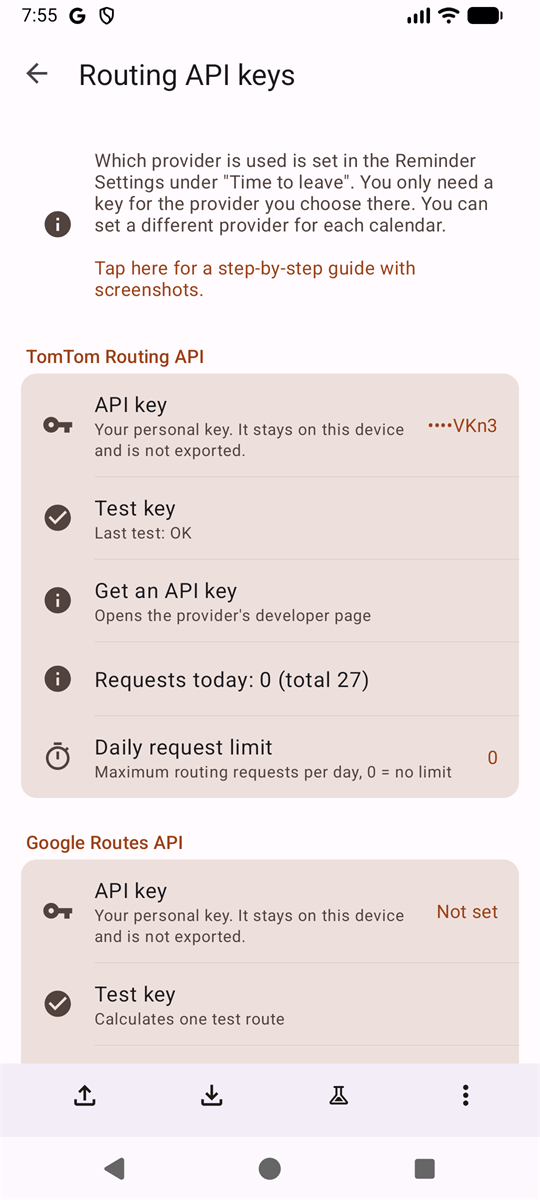
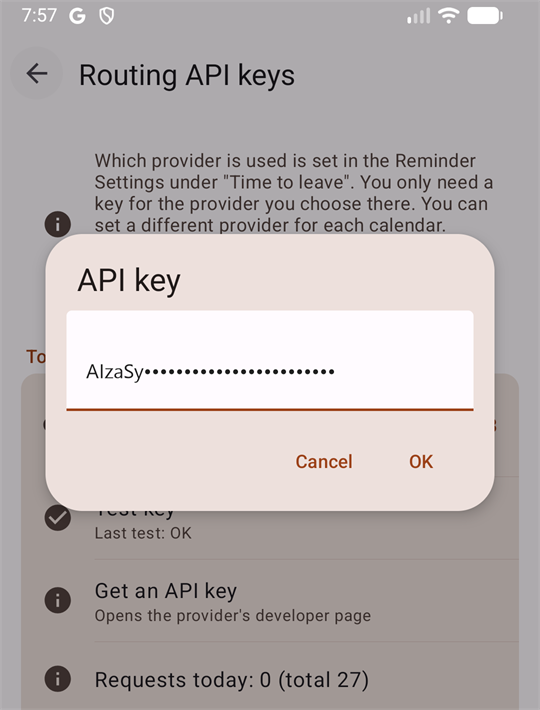
- Tap API key under Google or TomTom, paste the key and tap OK. CER tests
the key right away by calculating a short test route. “The key works” means everything is set.
You can repeat the test any time with Test key.
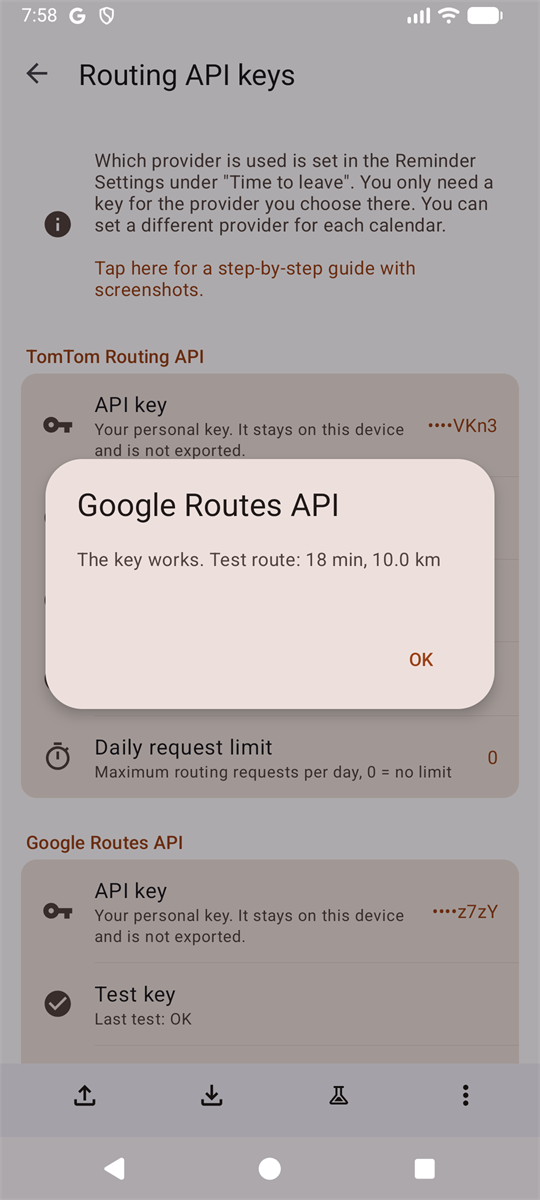
- Choose which provider to use in the reminder settings under Time to leave. You only need a key for the provider you pick there, and you can choose a different provider for each calendar.
Problems?
The test says the key is invalid or not authorized
- Check that you copied the whole key, without spaces at the start or end.
- Google: are Routes API and Places API (New) both enabled, ticked for the key? A new or changed key can take a few minutes to start working.
- TomTom: open the key in your dashboard and check that Routing API and Search API are enabled for it.
The test says the limit has been reached
You’ve used up the requests for today (or the quota you set). The counter resets the next day. CER shows how many requests it made today on the same screen.
Still stuck?
Write to us via the contact page.